Add and Edit Questions
Add and edit questions after creating your survey and naming it. Modifying an existing question or adding up a new one is very easy by simply clicking on a question to edit.
Adding a Question from Scratch
When you add a question, all the editing options are shown in the upper right corner of the question.
To add a question from scratch:
1. Under the Design Survey tab, select Builder from the left sidebar.
2. Choose from the question types you’d like to add to your survey.
3. Add the question to your survey by clicking the  beside the selected question type.
4. Enter your question text and answer choices, review the other additional options and settings.
5. Click Save.
Additional Options and Settings
Under the Options, Logic, Move and Copy tabs, you can make additional customization to your survey questions in the following ways:
- Options
- Require an answer to a question.
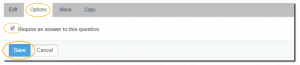
- Require an answer to a question.
- Logic – includes an option that moves respondents to a different question or page on the basis of their response to the current question. To enable skip logic, click here.

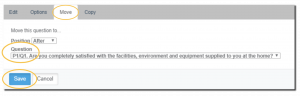
- Move – this setting allows you to move a question to your desired position.
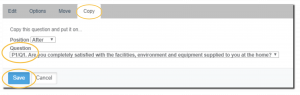
- Copy – this setting allows you to make a copy of a certain question.
NOTE: Other question types have more specific options and settings. Check it from the list of question types here.
Adding and Deleting Answer Choices
Add and delete answer choices, row choices and column choices by clicking the following buttons right next to those fields:
| Description | |
 | Add a new answer choice, row choice, or column choice. |
 | Delete an existing answer choice, row choice, or column choice. |